> For the complete documentation index, see [llms.txt](https://docs.beekeeb.com/llms.txt). Markdown versions of documentation pages are available by appending `.md` to page URLs; this page is available as [Markdown](https://docs.beekeeb.com/toucan-keyboard/diy-soldering-guide.md).
# DIY Soldering Guide
## Precautions
* This guide serves as a reference for soldering custom keyboards. Before using this guide, users must have proper soldering training and a basic understanding of electronic safety procedures, including the correct handling of lithium batteries. Improper soldering or handling can result in device damage, personal injury, or fire hazards.
* Before beginning any soldering work, carefully read through this entire guide from start to finish. If any section is unclear, seek advice from us or other experienced builders before proceeding.
* Always verify the battery polarity before making any connection. Connecting a battery with reversed polarity can cause damages to the electronic components, or pose a fire hazard.
* Before any soldering and retouches, disconnect the keyboard from the computer, batteries, or any power supply.
* After any soldering and retouches, wait for the Toucan keyboard PCB to cool down before connecting it to the computer.
* Incorrect soldering may cause damage to components or the beekeeb Toucan keyboard PCB.
* Ensure soldering temperature and duration are appropriate, and avoid applying excessive heat or pressure to pads and parts.
* Some components, including hotswap sockets and through‑hole parts, may have sharp edges or exposed pins.
* Before connecting the parts to the computer, check for any short circuits. Inspect solder joints and connections carefully to ensure there are no shorts that could cause damage.
* It is recommended to use temperature-controlled soldering iron.
* Wear safety glasses to protect your eyes from splashes and solder spatter.
* Ensure good ventilation or use a fume extractor to reduce inhalation of solder and flux fumes.
* Keep the workspace clear of flammable materials and solder only on a stable, nonflammable surface.
* Wash hands thoroughly after soldering.
## Firmware Flashing
Flash the left side firmware onto one of the Seeed Studio XIAO nRF52840 Plus.
Connect the Seeed Studio XIAO nRF52840 Plus to the computer using a data cable.
Double press the RST button to put it in the bootloader mode for UF2 flashing.
Depending on your operating system a drive is auto-mounted, or a drive can be mounted. The drive name starts with XIAO.
Copy the uf2 file to the USB mass storage device.
{% hint style="info" %}
If the drive is not shown, check if the USB cable is a data cable, but not a charging-only cable. You can also use the USB 2-in-1 C-C and A-C cable with a beekeeb logo if you have purchased it, or if you have received it.
You might also need to check with user privilege to mount the drive.
{% endhint %}
After about 5-10 seconds, the flashing is completed.
A warning about unsafe drive ejection may be shown, and it can safety be ignored.
It is expected that the copied uf2 file will not be shown in the USB mass storage device.
Disconnecting the Seeed Studio XIAO nRF52840 Plus from the computer, and reconnect it. The LED should blink twice only, instead of looping blue-red-green.
Repeat the above steps for the right side. Flash the right side firmware onto another Seeed Studio XIAO nRF52840 Plus. Disconnecting the Seeed Studio XIAO nRF52840 Plus from the computer, and reconnect it. Again, the LED should blink twice only, instead of looping blue-red-green.
## Controller Soldering
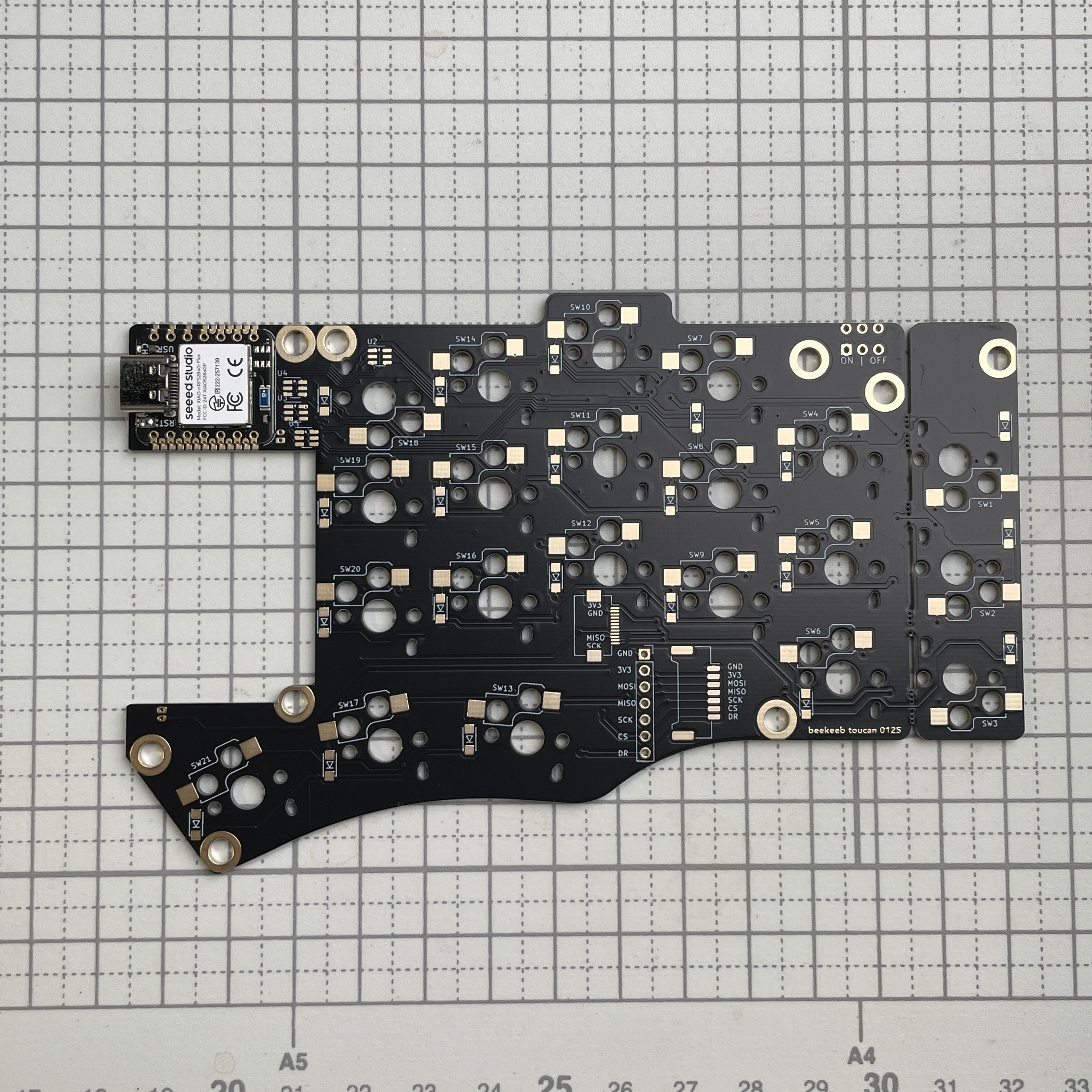
Solder the left controller to the left side PCB (the side with beekeeb logo).
Check if there are any cold joints, and shorts.
{% hint style="info" %}
Soldering iron tips such as B, C, BC, K around 2mm can be used.
{% endhint %}
{% hint style="info" %}
Even if you use the common rosin core solder wire, you might need to add extra flux. Extra flux help fixing short, or cold joints.
{% endhint %}
{% hint style="info" %}
Use solder wick to remove extra solder if needed.
{% endhint %}
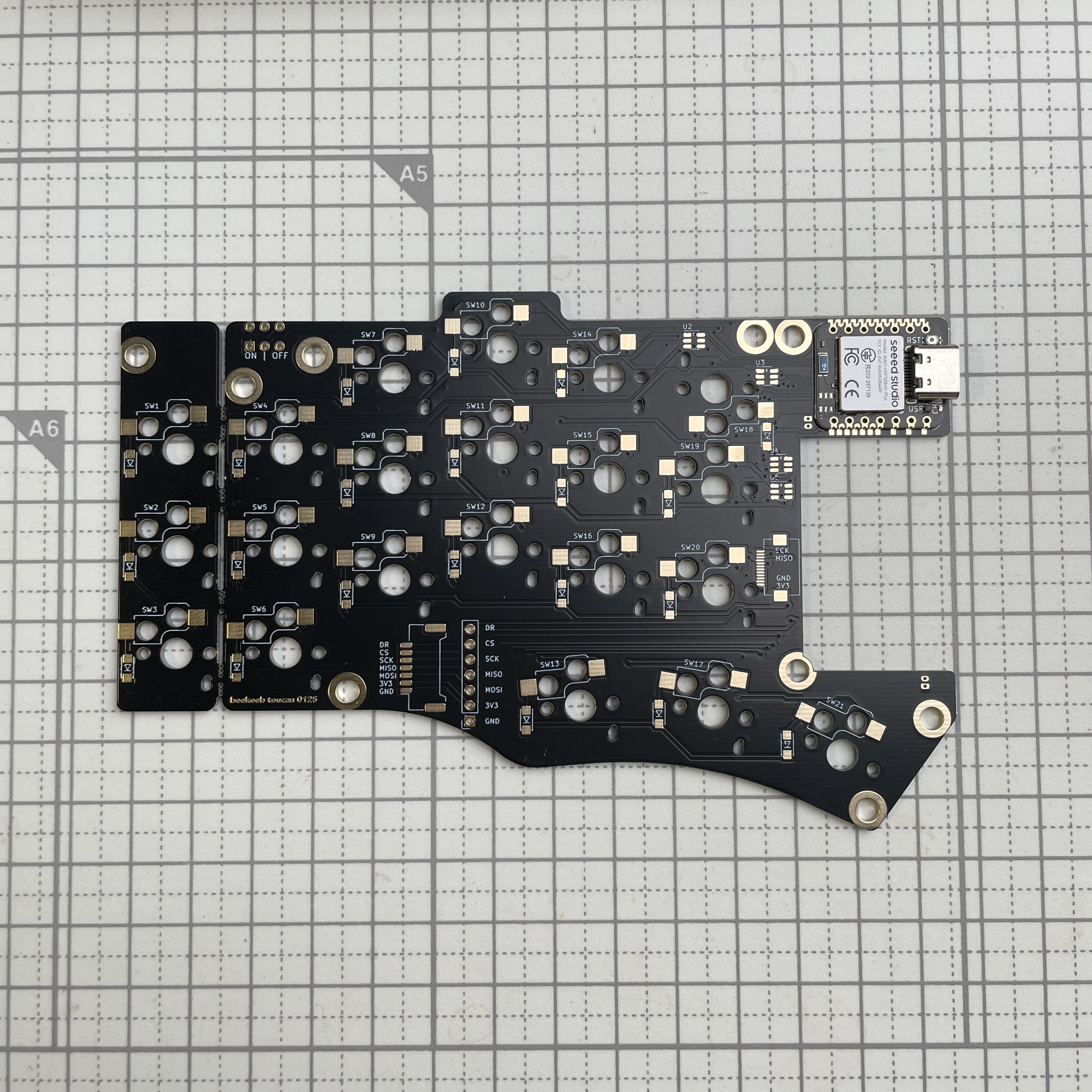
Solder the right controller to the right side PCB (the side without beekeeb logo).
## Diode Soldering
The diodes are directional. Orient the diode according to the photo below. Use a pair of tweezers to pick up the diode and position it for soldering.
Solder all diodes (21 diodes) on each side.
{% hint style="info" %}
We’ve made the pads bigger than usual. Bigger pads make hand‑soldering easier and more fun!
{% endhint %}
{% hint style="info" %}
Diodes are small. So, there are spare parts in the kit.
{% endhint %}
{% hint style="info" %}
Tinning one of the pads can make soldering easier. Do not tin both pads before placing the diode, because it will be hard to heat both pads with a basic soldering iron.
{% endhint %}
{% hint style="info" %}
If it is hard to see the line on the diode, use a flashlight and try with different angle.
{% endhint %}
## Hotswap Socket Soldering
On the left side PCB (with beekeeb logo), solder 1 hotswap socket near the controller (SW18). The order of soldering does not matter but that key is easy to be tested.
The hotswap socket can be soldered in either direction.
The shape is not 100% symmetrical. Optionally, if you prefer a more consistent look, you can orient it according to the silkscreen.
Heat the pad and the hotswap socket at the bottom of the hotswap socket, insert solder wire at the bottom. If it is possible, avoid touching the top metal part.
{% hint style="info" %}
Soldering iron tips K around 2mm is used in the above photo. Some examples are C245-789, K200, KU, or SK.
{% endhint %}
After soldering, wait for the PCB to cool down.
Check if there are unnecessary shorts.
Connect it to the computer with a USB data cable, but not a charging-only cable.
Trigger a key press by inserting a choc v1 or choc v2 key switches into the hotswap socket. You should be able to see one or more "t" during key presses.
{% hint style="info" %}
Do not install all key switches. Switch plate and foam will be installed between the PCB and key switch.
{% endhint %}
Solder the rest of the hotswap sockets.
For the right side key press testing, the left side is required to be connected to the computer. The left side acts as the main side, and the right side acts as the peripheral side.
## PCB Nut Soldering
Solder 9 PCB nuts on each side.
Use the suitable amount of solder so that the nut is close to the PCB.
{% hint style="info" %}
These M2 PCB nuts are similar to the M2 brass spacers commonly found in other keyboard kits. For people with soldering irons, these PCB nuts are easier to work with because they won't loosen when installing or removing screws.
{% endhint %}
Remove the orange-brown films.
{% hint style="info" %}
Use a small hex driver to push the film through the hole if needed.
{% endhint %}
## Display Breakout Board (Left Side) Soldering
Depending on the batch, you may receive either black cables or rainbow cables.
Connect the cable to the Display Breakout Board.
Solder the 7P cable onto the keyboard PCB.
### Black Cable
If you have received black cables, follow the photos below.
### Rainbow Cable
If you have received rainbow cables, follow the photos below.
## Trackpad Breakout Board (Right Side) Soldering
Depending on the batch, you may receive either black cables or rainbow cables.
Connect the 7P cable to the Trackpad Breakout Board.
Solder the 7P cable to the keyboard PCB, matching the connections indicated on the silkscreen.
### Black Cable
If you have received black cables, follow the photos below.
{% hint style="info" %}
It might be easier to solder by rotating the board 180 degrees if you are holding the soldering iron with your right hand.
{% endhint %}
### Rainbow Cable
If you have received rainbow cables, follow the photos below.
The actual color of the cable can be different. Please refer to the silk screen on both PCBs.
## Connect the Trackpad
#### Toucan Original / Toucan 1
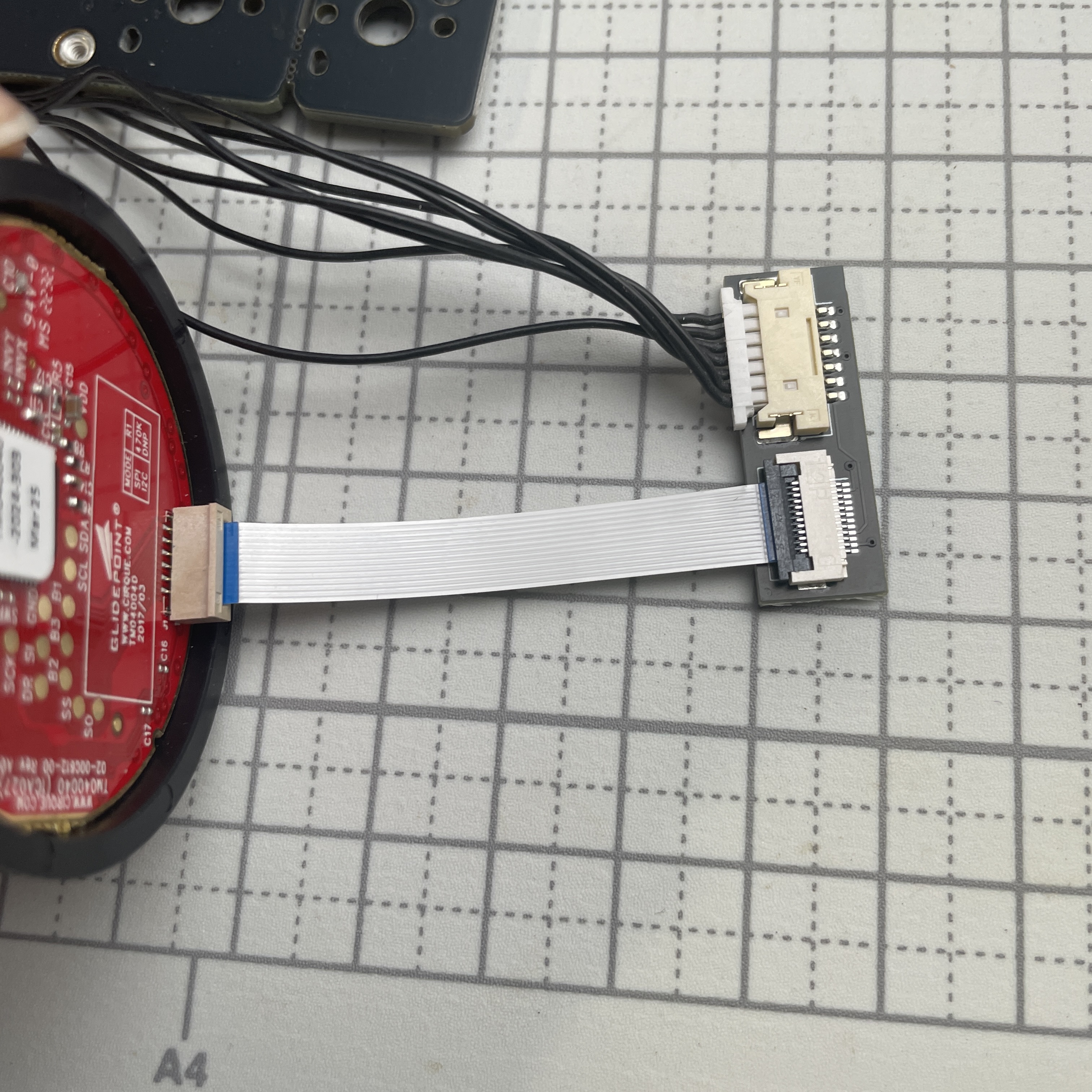
Connect the trackpad breakout board to the trackpad using the FPC cable.
Make sure the blue side of the cable faces the correct direction on both ends.
#### Toucan2
At this stage, we recommend not assembling the board into the case just yet. We will test the trackpad to ensure it functions well and solder the parts for wireless usage before assembling the board into the case.
## Testing
Connect both sides to the computer using USB data cable. At this point, you are able to use the both sides of the keyboard, with a display and a trackpad.
To make it portable, we will make it compatible with battery-powered.
## Battery Socket and Power Switch Soldering
### Controller BAT+ pin
Solder the Bat+ pin on both left and right sides.
{% hint style="info" %}
You might need to use more flux than you thought.
{% endhint %}
### Battery socket
For the default configuration, the display is on the left side, and the trackpad is on the right side. Do not solder the battery connectors onto the position marked as "ALT".
{% hint style="info" %}
For advanced hobbyists, soldering the battery connector at the "ALT" positions allows installing the trackpad on the left side and the display on the right side.
Note that the default 3D-printed case only supports the display on the left side and the trackpad on the right side.
Also, a custom firmware is required.
{% endhint %}
Solder the battery socket according to the silk screen.
Carefully check if there are any shorts.
{% hint style="info" %}
Flux and solder wick can be helpful when there are shorts.
{% endhint %}
### Power switch
{% hint style="info" %}
Instead of the commonly used SMD power switches PCM12SMTR/MSK12C01/MSK12C02, a more robust switch and easy-to-solder through hole power switch is chosen.
{% endhint %}
Solder the power switch with the slider pointing outwards.
Slide the power switch to the OFF side, before connecting/disconnect batteries.
Carefully check if there are any shorts.
## Final
### Left top
### Left bottom
### Right Top
### Right Bottom